Configuring a product with addons
This guide explains how to configure a product with addons in the Merchant App. Addons can be chargeable or zero-priced, and staff can select multiple addons for a single product.
Example scenario
- Product: Margherita Pizza
- Addons: Extra Cheese, Olives, Extra Sauce
- Addons can have a price (for example, Extra Cheese ₹30) or be zero-priced (for example, Extra Sauce ₹0).
- Multiple addons can be selected in a single order.
Prerequisites
- You are logged into the Merchant App with a role that has Edit access to Inventory and Products/Menu.
Step 1: Create or open a product
- Navigate to Inventory → Products.
- Click Add Product or select an existing product (for example, Margherita Pizza).
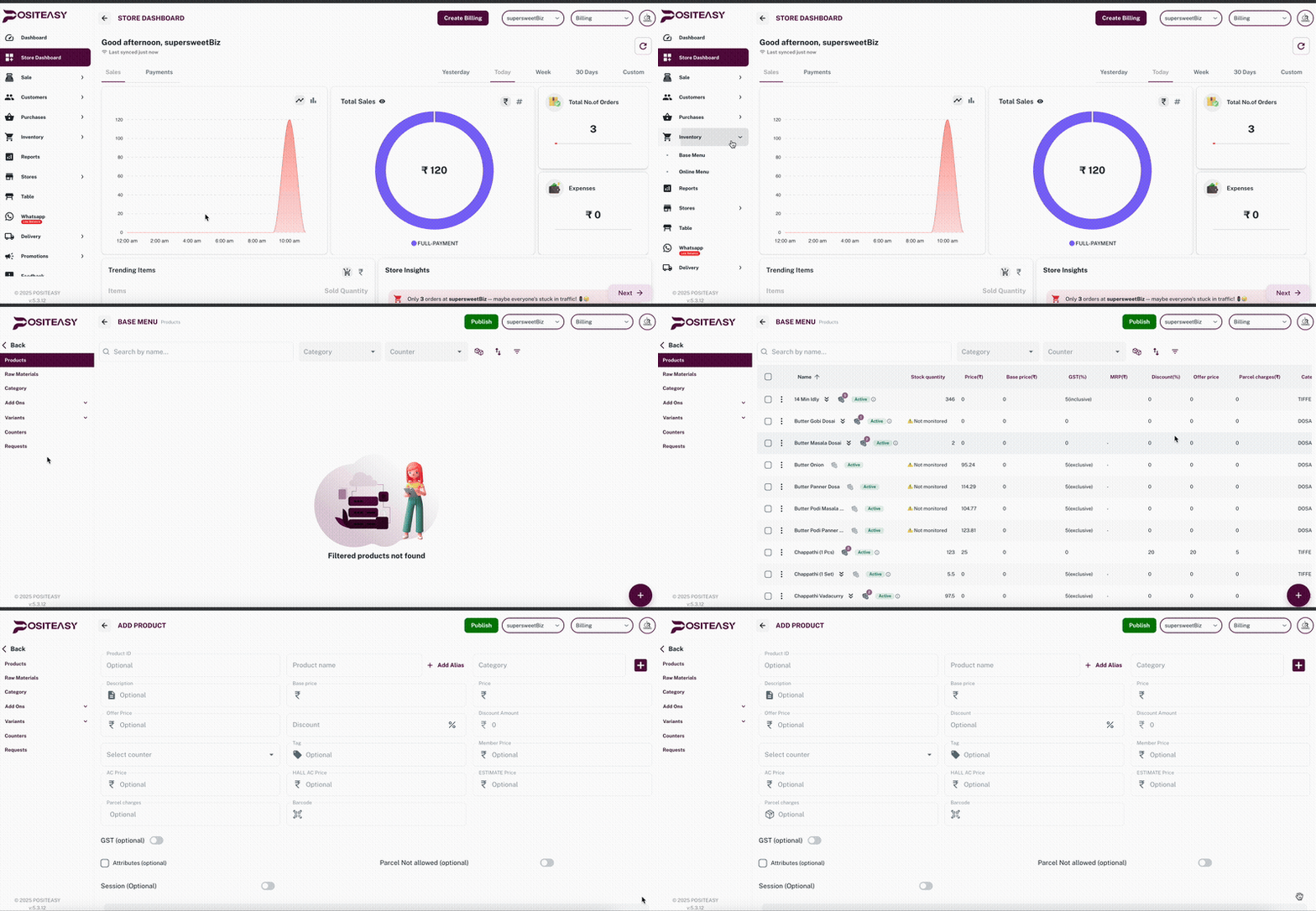
- Enter basic details such as Name, Category and price for the main product.
Step 2: Open the Addons section
- In the product add/edit screen, scroll to the Addons section.
- Click Add addon to start configuring addons for this product.
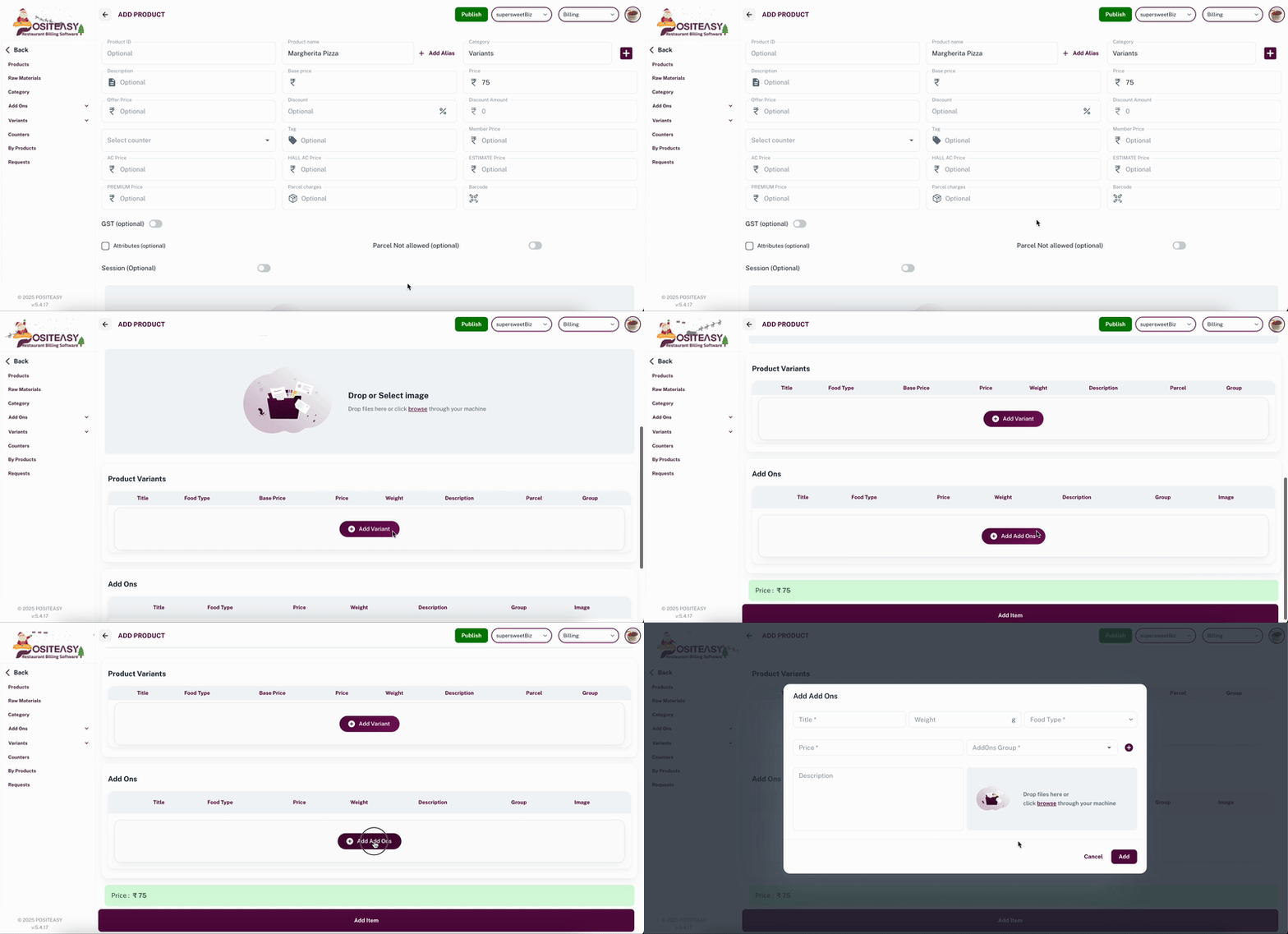
Step 3: Create an addon group
- Enter an addon group name, for example Pizza Addons and Sort Order as 1.
- Save the addon group to start adding individual addons under it.
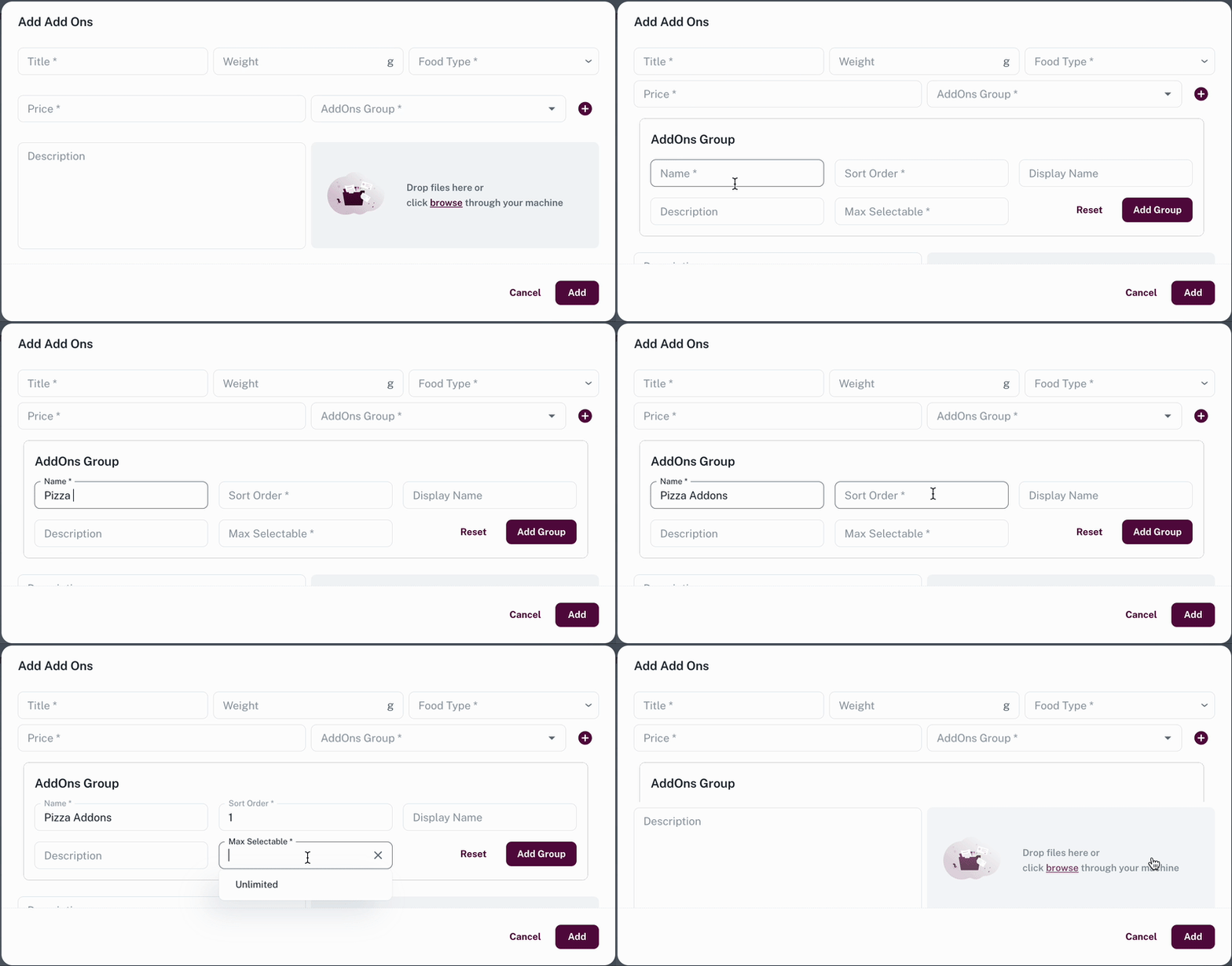
Step 4: Add addons (priced and zero-priced)
- With the addon group Pizza Addons selected.
- For each addon, enter:
- Addon name (for example, Extra Cheese, Olives, Extra Sauce).
- Price:
- Enter a value (for example, ₹30, ₹20) for paid addons.
- Enter ₹0 for free addons you still want to track (for example, Extra Sauce).
- Repeat the above step until all required addons are added under the group.
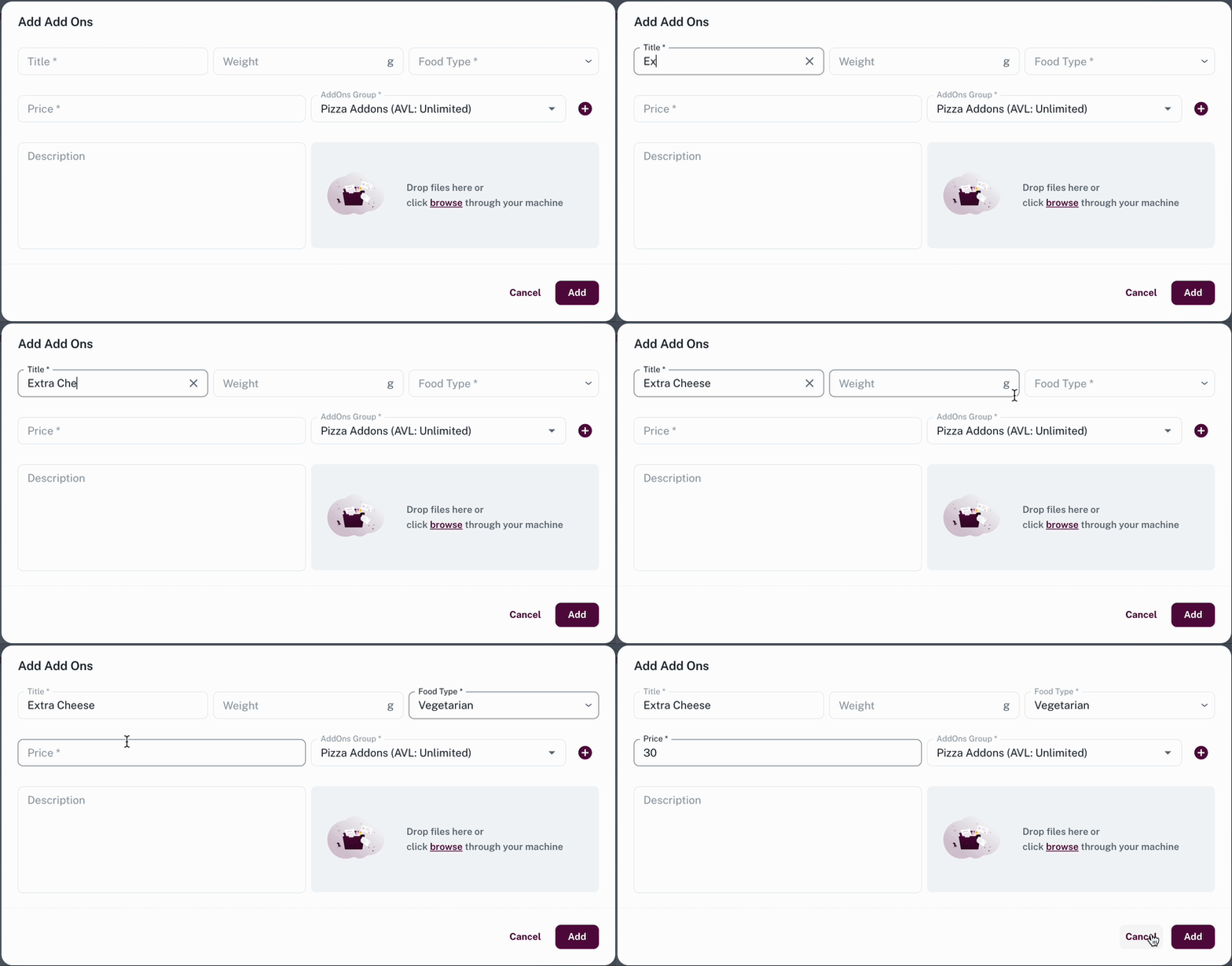
Example configuration:
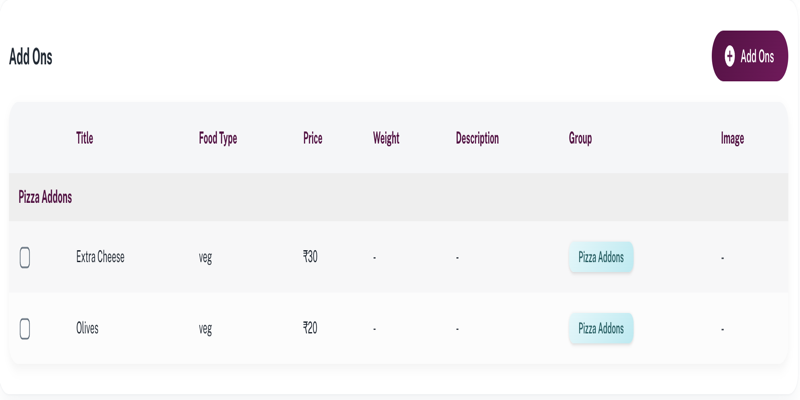
- Extra Cheese — ₹30
- Olives — ₹20
- Extra Sauce — ₹0
Your screen should look like below after adding the addons.
Step 5: Save the product
- Review the product and addon configuration.
- Click Add Item / Update Item to complete the setup.
How addons work at billing
-
When the product (for example, Margherita Pizza) is added to the bill, the Addons popup or section opens.
-
The cashier or staff can select multiple addons from the addon group for the same product line.
-
The final price is calculated as:
Final price = Base product price + sum of selected addon prices
-
Zero-priced addons appear for selection but do not change the total amount.
Billing example
Once created or edited, the product will be visible on the Staff App billing screen after account sync. You can select the product with addons as shown below:
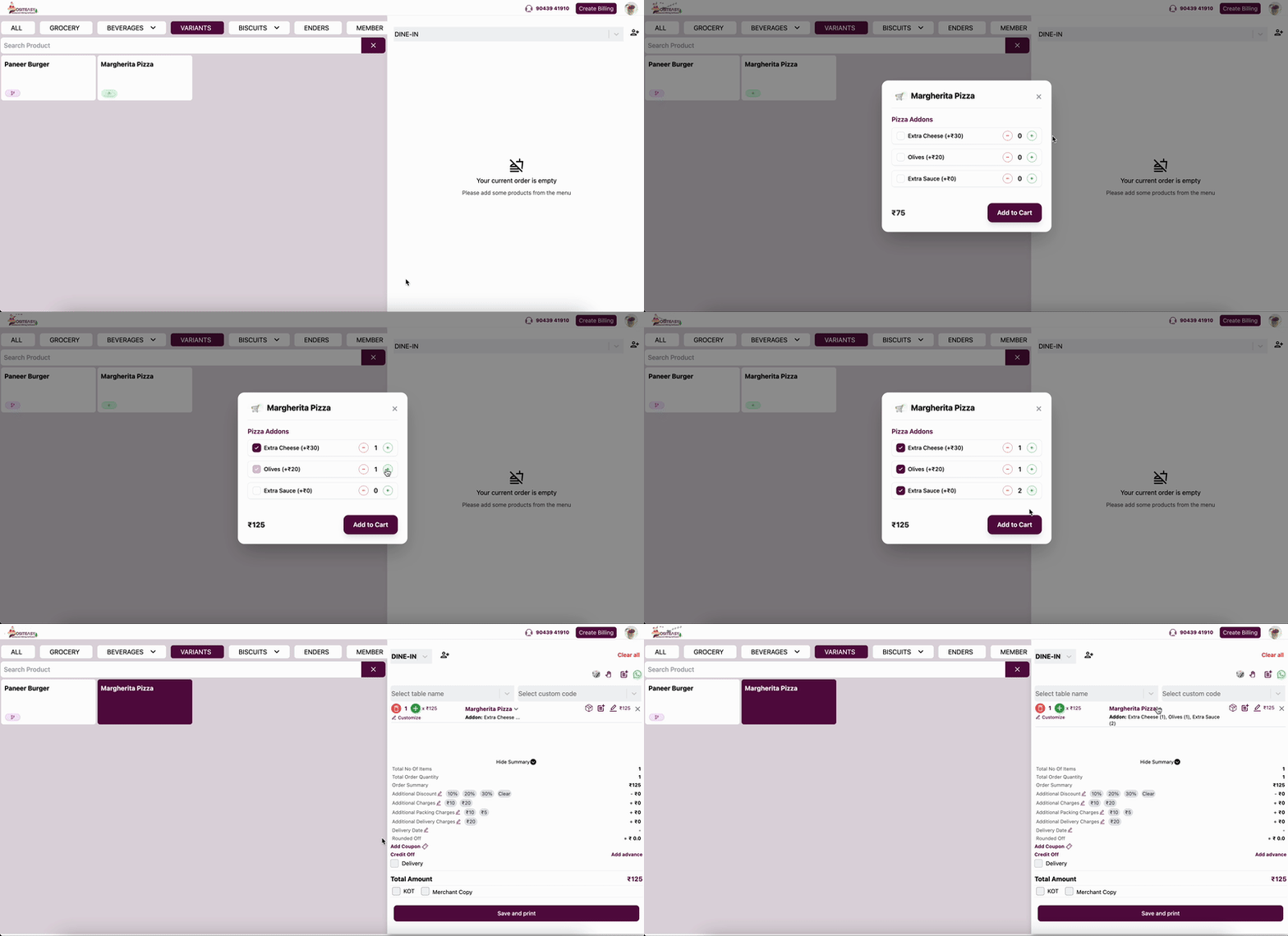
- Product: Margherita Pizza — ₹75
- Selected addons:
- Extra Cheese — ₹30
- Jalapeños — ₹20
- Extra Sauce — ₹0
Final price = ₹75 + ₹30 + ₹20 + ₹0 = ₹125